PIXNET Logo登入

xiangyang17

跳到主文

用影像,留住時間帶走的一切

部落格全站分類:攝影寫真

  • 相簿
  • 部落格
  • 留言
  • 名片
  • 2月 14 週四 201315:54
  • [IT][Virtualization][Ovirt] Ovirt Node On VMware

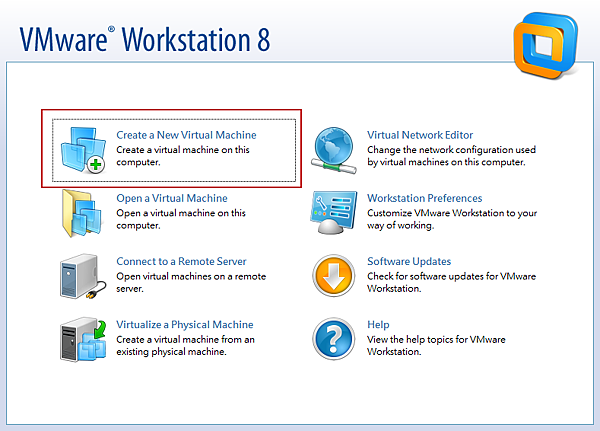
node-1
本文介紹如何在 VMware 上安裝 Ovirt Node

Node 類型
Node 有兩種,一種是一般 Linux 並設定好 VDSM服務,一種為 Ovirt Node 專門當 Node 使用,使用一般 Linux 網路設定我還沒搞懂,因此僅先介紹 Ovirt Node 。
Ovirt Node 專門作為 hypervisor,檔案小,且安裝完之後系統為唯讀,因此系統較不容易掛掉。
Ovirt Node 取得
Ovirt Node 取得也有兩種方式,一種是透過 Ovirt 工具,自己去 build 一個 ISO 出來,我搞了半天還是搞不出來,所以最簡單的,就是去 Ovirt 官網下載吧.....
我抓的是 2.6 beta 版,網址如下
http://resources.ovirt.org/releases/beta/iso/
要抓穩定版的,網址如下
http://resources.ovirt.org/releases/stable/tools/
因為我的 Ovirt 為 3.1,使用 2.5 版的好像會有問題,因此才改抓 2.6。
Ovirt Node On VMware
安裝方式差不多,考慮到有些人是為了要作 Lab ,可能也沒那麼多機器,安裝在 VMware 是不錯的選擇
(繼續閱讀...)
文章標籤

xiangyang17 發表在 痞客邦 留言(1) 人氣(889)

  • 個人分類:Linux
▲top
  • 2月 14 週四 201315:01
  • [IT][Virtualization][Ovirt] Ovirt On CentOS

本文介紹如何在 CentOS 6 上安裝 Ovirt

參考網址:
http://wiki.centos.org/zh-tw/HowTos/oVirt
版本資訊:
CentOS 6.3 x64 (安裝 Ovirt 請使用 64bit)
系統需求:
硬體:
最少:擁有 4GB 記憶體的雙核伺服器、25 GB 磁碟空間及 1 Gbps 網絡介面。
建議:擁有 16GB 記憶體的雙插座/四核伺服器、橫跨多個轉軸的 50GB 磁碟空間及 1 Gbps 網絡介面。
引擎並不需要 CPU 提供虛擬化延伸。
管理存取:
之後會透過瀏覽器來設定,建議這台就專作 Ovirt 使用,避免其他不必要的問題
網路:
DHCP: 個人覺得可有可無,都設定固定IP即可
DNS: 之後的架構會與 AD 作整合,因此此部分可使用 AD 取代,另外要注意 DNS 需要能正反解,不然有些功能會無法使用。
Ovirt 主機上若有安裝 NetworkManager 請停用,改使用 network
設定步驟
設定 Ovirt yum 套件
[root@OvirtM-1 ~]# cd /etc/yum.repos.d
[root@OvirtM-1 yum.repos.d]# wget -q http://people.centos.org/hughesjr/ovirt31/ovirt.repo
更新 yum 並重開機
[root@OvirtM-1 yum.repos.d]# yum  -y upgrade
[root@OvirtM-1 yum.repos.d]# shutdown -r now
安裝 Ovirt 套件
[root@OvirtM-1 ~]# yum -y install ovirt-engine
Ovirt 初始設定
[root@OvirtM-1 ~]# engine-setup
Welcome to oVirt Engine setup utility
In order to proceed the installer must stop the ovirt-engine service
Would you like to stop the ovirt-engine service? (yes|no): yes
是否要停止 ovirt-engine,請輸入 yes
 oVirt Engine uses httpd to proxy requests to the application server.
It looks like the httpd installed locally is being actively used.
The installer can override current configuration .
Alternatively you can use JBoss directly (on ports higher than 1024)
Do you wish to override current httpd configuration and restart the service? ['yes'| 'no']  [yes] : yes
是否要複寫設定並重啟 httpd ,請輸入 yes
HTTP Port  [80] : 80
請輸入 HTTP 的 Port
HTTPS Port  [443] : 443
請輸入 HTTPS 的 Port
Host fully qualified domain name. Note: this name should be fully resolvable  [OvirtM-1] : OvirtM-1.example.com
輸入 Ovirt 主機名稱
The IP 192.168.1.221 does not hold a PTR record for the FQDN: OvirtM-1.example.com
User input failed validation, do you still wish to use it? (yes|no): yes
輸入的名稱必須要能正反解,但有時好像會怪怪的,輸入 yes (確定在DNS設定正確)
Enter a password for an internal oVirt Engine administrator user (admin@internal) :
輸入管理介面 admin 的密碼
Warning: Weak Password.
Confirm password :
再輸入一次
Organization Name for the Certificate  [OvirtM-1] : Example
憑證的組織名稱
The default storage type you will be using  ['NFS'| 'FC'| 'ISCSI'| 'POSIXFS']  [NFS] :
預設的 storage 要使用哪一種,預設為 NFS
Enter DB type for installation ['remote'| 'local']  [local] :
使用遠端或本地DB,預設為本地
Enter a password for a local oVirt Engine DB admin user (engine) :
輸入DB的密碼
Warning: Weak Password.
Confirm password :
再輸入一次
Configure NFS share on this server to be used as an ISO Domain? ['yes'| 'no']  [yes] :
是否要設定 ISO Domain
Local ISO domain path  [/var/lib/exports/iso] : /exports/iso
ISO Domain 的路徑
Firewall ports need to be opened.
The installer can configure iptables automatically overriding the current configuration. The old configuration will be backed up.
Alternately you can configure the firewall later using an example iptables file found under /etc/ovirt-engine/iptables.example
Configure iptables ? ['yes'| 'no']: no
是否要設定 iptables,請輸入 no
oVirt Engine will be installed using the following configuration:
=================================================================
override-httpd-config:         yes
http-port:                     80
https-port:                    443
host-fqdn:                     OvirtM-1.example.com
auth-pass:                     ********
org-name:                      Example
default-dc-type:               NFS
db-remote-install:             local
db-local-pass:                 ********
nfs-mp:                        /exports/iso
config-nfs:                    yes
override-iptables:             no
Proceed with the configuration listed above? (yes|no): yes
列出設定值,會問你是否要修改設定,輸入 yes 便開始設定
設定過程
Installing:
Configuring oVirt-engine...                              [ DONE ]
Configuring JVM...                                       [ DONE ]
Creating CA...                                           [ DONE ]
Updating ovirt-engine service...                         [ DONE ]
Setting Database Configuration...                        [ DONE ]
Setting Database Security...                             [ DONE ]
Creating Database...                                     [ DONE ]
Updating the Default Data Center Storage Type...         [ DONE ]
Editing oVirt Engine Configuration...                    [ DONE ]
Editing Postgresql Configuration...                      [ DONE ]
Configuring the Default ISO Domain...                    [ DONE ]
Configuring Firewall (iptables)...                       [ DONE ]
Starting ovirt-engine Service...                         [ DONE ]
Configuring HTTPD...                                     [ DONE ]
 **** Installation completed successfully ******
     (Please allow oVirt Engine a few moments to start up.....)
**** To access oVirt Engine browse to http://OvirtM-1.example.com:80 ****
Additional information:
 * There are less than 4096 MBs of available free memory on this machine.
It is  recommended to have at least 4096 MBs of available memory to run the oVirt Engine.
 * oVirt Engine CA SSL Certificate SHA1 fingerprint: 2C:1A:16:24:C5:E5:E9:16:2C:72:E2:91:6B:3F:02:EA:A8:64:9A:EF
 * SSH Public key fingerprint: bd:db:67:f7:c3:82:e4:f8:f3:1a:ab:3b:f9:25:1b:75
 * A default ISO share has been created on this host.
   If IP based access restrictions are required, please edit /exports/iso entry in /etc/exports
 * oVirt Engine requires the following TCP/IP Incoming ports to be opened on the firewall:
22, 80, 443
 * an example of the required configuration for iptables can be found at: /etc/ovirt-engine/iptables.example
 * The installation log file is available at: /var/log/ovirt-engine/engine-setup_2013_02_14_22_49_46.log
 * Please use the user "admin" and password specified in order to login into oVirt Engine
 * To configure additional users, first configure authentication domains using the 'engine-manage-domains' utility
修正旋轉替換日誌的問題。
sed -i 's/`;/ 2>\/dev\/null`;/' /usr/share/ovirt-engine/scripts/ovirtlogrot.sh
至此,Ovirt 便安裝完成。
(繼續閱讀...)
文章標籤

xiangyang17 發表在 痞客邦 留言(0) 人氣(466)

  • 個人分類:Linux
▲top
  • 2月 14 週四 201314:24
  • [IT][Virtualization][Ovirt] Open Source 中的虛擬平台 Ovirt

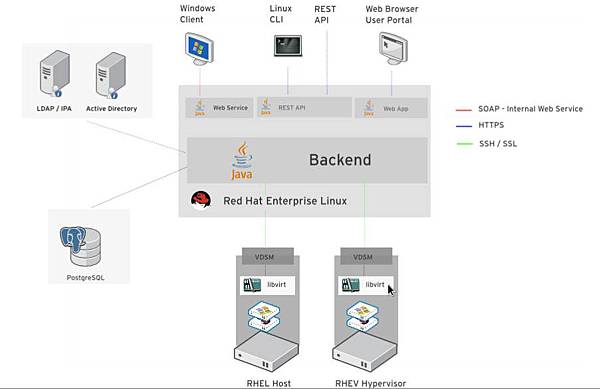
Overview-rhev.png
前一篇簡單介紹了 Red Hat 的虛擬化產品,其實 Red Hat 的虛擬化產品是以 KVM 為底層並使用 Ovirt 為管理中心,透過 Ovirt 去管理每個使用 KVM 虛擬的機器,這就像是VMware 裡的 vCenter 與 vSphere ESXi 的關係。


上圖是 RHEV 的架構圖,可從幾個面向來看:
管理中心: 中間為管理中心,也就是 Ovirt 的所在,透過 Ovirt 去設定管理哪些 node 要加入管理、使用那些資源(Storage)、使用者管理,管理介面為網頁介面,並須支援 Java
管理介面: Administrator Portal: 管理者所使用,能使用完整的功能 (目前須使用 IE)
             User Portal: 一般使用者使用,僅能使用指定的功能 (可使用 Firefox)
使用者: 支援 LDAP 與 AD 的使用者
資料庫: 預設使用 Postgresql
Node: 運算節點,可想成是ESXi,在此只要開啟 KVM 功能即可,可使用 Ovirt Node 的安裝光碟,或是使用一般發行的 Linux 並開啟虛擬化功能以及安裝 VDSM 便可當運算節點。
Ovirt 官網
http://www.ovirt.org/Home
Ovirt Node
http://www.ovirt.org/Category:Node
(繼續閱讀...)
文章標籤

xiangyang17 發表在 痞客邦 留言(0) 人氣(255)

  • 個人分類:Linux
▲top
  • 1月 21 週一 201323:23
  • [IT][Virtualization] Red Hat 虛擬化簡介

近幾年來虛擬化一直都很夯, 在open source 當然也不會缺席, 常見的大概有 xen 與 KVM。

RHEL 5.x 開始內建虛擬化功能, 但為 xen,5.4 之後改為KVM,其實是KVM與 Xen並存。
 
(繼續閱讀...)
文章標籤

xiangyang17 發表在 痞客邦 留言(0) 人氣(425)

  • 個人分類:Linux
▲top
  • 3月 20 週日 201108:39
  • [IT][Linux] iSCSI On Linux

iSCSI簡介
iSCSI 又稱為 IP-SAN,是一種基於互聯網及SCSI-3協議下的存儲技術,利用TCP/IP的Port 860與3260溝通。iSCSI不需專用的電纜,可在現有的IP基礎上運行,但一般為了效能會使用光纖,並使用專用的HBA卡來進行通訊。
一般iSCSI常用在Storage上。

iSCSI角色
target server
可將他視為server的角色,以實例來看就是Storage
initiator
可將他視為 client 的角色,以實例來看就事存取 Storage 的設備,一般就是伺服器。
在Linux上使用 iSCSI
現在的 Linux 也可輕鬆使用 iSCSI,底下將實作架設 target server與存取 iscsi 資源的 initiator
實作平台:CentOS-5.5
套件:
target server
scsi-target-utils.i386
initiator
iscsi-initiator-utils.i386
安裝
[root@localhost ~]# yum install -y scsi-target-utils
設定分割區
將要供target server使用的磁區切割好,但不用格式化。
啟動 tgtd 服務
[root@localhost ~]# service tgtd start
[root@localhost ~]# chkconfig tgtd on
建立 target device
一般 device 名稱如:
iqn.yyyy-mm.<reversed domain name>[:identifier]
yyyy-mm
年月份
reversed domain name
網域名稱倒著寫
identifier
自行設定一個識別名稱
新增 device
[root@localhost ~]# tgtadm --lld iscsi --op new --mode target --tid 1 -T iqn.2011-03.com.xiang:xiangnas
檢視 device
[root@localhost ~]# tgtadm --lld iscsi --op show --mode target
將分割區加入 target device
[root@localhost ~]# tgtadm --lld iscsi --op new --mode logicalunit --tid 1 --lun 1 -b /dev/sdb1
允許主機存取
[root@localhost ~]# tgtadm --lld iscsi --op bind --mode target --tid 1 --initiator-address=192.168.1.211
開機自動設定
因上面這些設定再重開機後就會消失,所以若要使設定在重開機後仍然有效,就需要在開機時設定好,設定方法就是在 /etc/rc.local 加入設定:
tgtadm --lld iscsi --op new --mode target --tid 1 -T iqn.2011-03.com.xiang:xiangnas
tgtadm --lld iscsi --op new --mode logicalunit --tid 1 --lun 1 -b /dev/sdb1
tgtadm --lld iscsi --op bind --mode target --tid 1 --initiator-address=192.168.1.211
至此,iSCSI target server 已架設完成,再來介紹如何存取 iSCSI。
在Linux上使用initiator
實作平台:CentOS-5.5
套件:iscsi-initiator-utils.i386
安裝
[root@localhost ~]# yum install -y iscsi-initiator-utils.i386
在 iSCSI initiator 指定 initiator 別名
[root@localhost ~]# echo "InitiatorAlias=node1" >> /etc/iscsi/initiatorname.iscsi
啟動 iSCSI 服務
[root@localhost ~]# service iscsi start
開機時啟動 iSCSI
[root@localhost ~]# chkconfig iscsi on
偵測 target server 的 device
[root@localhost ~]# iscsiadm -m discovery -t sendtargets -p 192.168.1.218
登入 iSCSI target server
[root@localhost ~]# iscsiadm -m node -T iqn.2011-03.com.xiang:xiangnas -p 192.168.1.218:3260 -l
成功登入後可以使用 fdisk -l 來看看是不是有多出 iSCSI 硬碟
[root@localhost ~]# fdisk -l
登出 iSCSI target server
[root@localhost ~]# iscsiadm -m node -T iqn.2011-03.com.xiang:xiangnas -p 192.168.1.218:3260 -u
(繼續閱讀...)
文章標籤

xiangyang17 發表在 痞客邦 留言(0) 人氣(744)

  • 個人分類:Linux
▲top
  • 12月 22 週三 201022:28
  • [IT][Linux] Install Redmine On CentOS

本文將介紹如何在 CentOS 上安裝 Redmine
參考網址:
http://shyam.blog127.fc2.com/blog-entry-6.html
http://www.redmine.org/
本文參考以上網址資料,再以實際安裝狀況修改安裝步驟:
1. 增加 rubyworks.repo
[root@localhost ~]# vi /etc/yum.repos.d/rubyworks.repo
# Link file for RubyWorks yum repository
# Place this file in /etc/yum.repos.d
[rubyworks]
name=RubyWorks
baseurl=http://rubyworks.rubyforge.org/redhat/$releasever/RPMS/$basearch
enabled=1
gpgcheck=1
gpgkey=http://rubyworks.rubyforge.org/RubyWorks.GPG.key
priority=1
2. 安裝 Ruby on Rails
[root@localhost ~]# yum install ruby ruby-devel ruby-libs ruby-irb ruby-rdoc ruby-mysql mysql mysql-server rubygem-mysql
3. 下載並安裝 Ruby Gems
[root@localhost ~]# wget http://rubyforge.org/frs/download.php/69365/rubygems-1.3.6.tgz
[root@localhost ~]# tar xvf rubygems-1.3.6.tgz
[root@localhost ~]# cd rubygems-1.3.6
[root@localhost rubygems-1.3.6]# ruby setup.rb
4. 安裝 Rails , 參考 http://www.redmine.org/wiki/redmine/RedmineInstall 安裝所需要的版本, 這裡我安裝 RedMine 1.0.x 版搭配使用 Rails 2.3.5 版本
[root@localhost rubygems-1.3.6]# gem update --system
[root@localhost rubygems-1.3.6]# gem install -v=2.3.5 rails
[root@localhost rubygems-1.3.6]# gem install rack -v=1.0.1
5. 啟動 mysql
[root@localhost ~]# service mysqld start
6. 在資料庫建立 redmine 的相關設定
[root@localhost ~]# mysql
Welcome to the MySQL monitor.  Commands end with ; or \g.
Your MySQL connection id is 2
Server version: 5.0.77 Source distribution
Type 'help;' or '\h' for help. Type '\c' to clear the buffer.
mysql> create database redmine character set utf8;
Query OK, 1 row affected (0.00 sec)
mysql> create user 'redmine'@'localhost' identified by 'PASSWORD';
Query OK, 0 rows affected (0.00 sec)
mysql> grant all privileges on redmine.* to 'redmine'@'localhost';
Query OK, 0 rows affected (0.00 sec)
7. 下載 redmine 並解開
[root@localhost ~]# wget http://rubyforge.org/frs/download.php/73457/redmine-1.0.4.tar.gz
[root@localhost ~]# tar zxvf redmine-1.0.4.tar.gz
8. 將 redmine 放在 /opt 底下,請依自己的習慣放置

[root@localhost ~]# mv redmine-1.0.4 /opt/
9. 切換到 redmine 底下
[root@localhost ~]# cd /opt/redmine-1.0.4/
10. 建立資料庫設定檔
[root@localhost redmine-1.0.4]# cp config/database.yml.example config/database.yml
11. 設定Redmine與資料庫連接的設定檔
[root@localhost redmine-1.0.4]# vi config/database.yml
production:
  adapter: mysql
  database: redmine
  host: localhost
  username: root
  password:
  encoding: utf8
12. 設定 Redmine
[root@localhost redmine-1.0.4]# RAILS_ENV=production rake config/initializers/session_store.rb
(in /opt/redmine-1.0.4)
13. 建立資料庫, 此時必需在 RedMine 的目錄下
[root@localhost redmine-1.0.4]# rake db:migrate RAILS_ENV=production
14. 選擇預設語系
[root@localhost redmine-1.0.4]# rake redmine:load_default_data RAILS_ENV=production
(in /opt/redmine-1.0.4)
Select language: bg, bs, ca, cs, da, de, el, en, en-GB, es, eu, fi, fr, gl, he, hr, hu, id, it, ja, ko, lt, lv, mk, mn, nl, no, pl, pt, pt-BR, ro, ru, sk,
sl, sr, sr-YU, sv, th, tr, uk, vi, zh, zh-TW [en] zh-TW
====================================
Default configuration data loaded.
15. 啟動 Redmine
[root@localhost redmine-1.0.4]# ruby script/server -e production
16. 開啟瀏覽器輸入 http://localhost:3000 ,預設帳密為 admin/admin
17. 開機時啟動
[root@localhost redmine-1.0.4]# vi /etc/rc.local
ruby /opt/redmine-1.0.4/script/server -e production
(繼續閱讀...)
文章標籤

xiangyang17 發表在 痞客邦 留言(0) 人氣(1,027)

  • 個人分類:Linux
▲top
  • 12月 08 週三 201021:03
  • [IT][Linux] OpenVAS 安裝與使用

client-1.png
OpenVAS
OpenVAS是一套opensource的弱點掃描軟體,其實它是 Nessus 的分支(Nessus也是一套opensource的弱點掃描軟體),Nessus 被收購後從 3.0 開始變更了授權方式,以目前得到的訊息是分成兩種授權 a. 商業授權(須付費) b. 個人使用(免費,但僅個人使用)。
OpenVAS 使用 Nessus 2.0 作為基礎發展,在 Nessus 商業化之後算是目前很不錯的弱點掃描軟體(opensource)

OpenVAS 官方網站提供各套件說明以及各版本的套件原始碼下載,目前 OpenVAS 支援許多 Linux 版本,像是 CentOS、Fedora、ubuntu、opensuse等等,除了這些之外官網甚至還提供 VM 跟 live-cd 下載,方便使用。
底下將介紹如何在 CentOS 上使用 OpenVAS
Install OpenVAS On CentOS
依官網說明,新增 yum 來源資料庫後便可使用 yum 安裝 OpenVAS:
1. [root@centos-xiang ~]# wget -q -O - http://www.atomicorp.com/installers/atomic | sh
安裝新資料庫
2. [root@centos-xiang ~]# yum search openvas
已經可以找到 OpenVAS相關套件了
Loaded plugins: fastestmirror
Loading mirror speeds from cached hostfile
 * addons: ftp.twaren.net
 * atomic: www5.atomicorp.com
 * base: ftp.twaren.net
 * extras: ftp.twaren.net
 * updates: data.nicehosting.co.kr
atomic                                                                                        
| 1.9 kB     00:00
atomic/primary_db                                                                             
| 394 kB     00:02
================================================= Matched: openvas
==================================================
greenbone-security-assistant.i386 : GSA
openvas-administrator.i386 : The Open Vulnerability Assessment (OpenVAS) Administrator
openvas-cli.i386 : The Open Vulnerability Assessment (OpenVAS) CLI
openvas-client.i386 : OpenVAS-Client, a GTK GUI for the OpenVAS Network Security Scanner
openvas-glib2.i386 : A library of handy utility functions
openvas-glib2-devel.i386 : The GIMP ToolKit (GTK+) and GIMP Drawing Kit (GDK) support library
openvas-libnasl.i386 : Support library for Open Vulnerability Assessment (OpenVAS) Server
openvas-libnasl-devel.i386 : Development files for openvas-libnasl
openvas-libraries.i386 : Support libraries for Open Vulnerability Assessment (OpenVAS) Server
openvas-libraries-devel.i386 : Development files for openvas-libraries
openvas-manager.i386 : The Open Vulnerability Assessment (OpenVAS) Manager
openvas-plugins.i386 : The Open Vulnerability Assessment (OpenVAS) Server
openvas-scanner.i386 : The Open Vulnerability Assessment (OpenVAS) Server
openvas-server.i386 : The Open Vulnerability Assessment (OpenVAS) Server
openvas-server-devel.i386 : Development files for openvas-server
4. [root@centos-xiang ~]# yum install openvas-server-devel
安裝 OpenVAS,安裝這個套件就會把需要的套件都裝起來
5. [root@centos-xiang ~]# openvas-mkcert
建立相關憑證,不建立也可以,但有聽說不建立有時會讓服務無法啟用
6. [root@centos-xiang ~]# openvas-adduser
建立 OpenVAS 的使用者
7. [root@centos-xiang ~]# openvas-nvt-sync
更新 OpenVAS ,這很重要,更新後才會有弱點掃描相關的plugins
8. 最後就是啟動 OpenVAS 了,在 CentOS 可使用 service openvas-scanner start 來啟動(預設開機會自動啟動喔)

OpenVAS Client
與 Nessus 一樣,需要一個 Client 介面來操控 OpenVAS,名稱就叫做 openvas-client,支援 Linux 與 Windwos 版本,但是很殘念的,目前 Windows 版本為 OpenVAS-Client-1.0.3,如果是太新的 OpenVAS 就無法使用,因此建議還是使用 Linux 吧!!
1. [root@centos-xiang ~]# yum install openvas-client
安裝 client 端套件
2. 程式開啟位置
(繼續閱讀...)
文章標籤

xiangyang17 發表在 痞客邦 留言(0) 人氣(8,786)

  • 個人分類:Linux
▲top
  • 10月 11 週一 201020:23
  • [IT][Linux] apache 虛擬主機

前言
apache 支援在同一台主機裡架設多個網站,這是使用 apache 的虛擬主機功能,底下將介紹如何設定。

環境模擬
除了原本已建立好的網站之外,要在另外架設兩個不同功能的網站,名稱如下:
syslog.test.com
cacti.test.com
當輸入上面的網址時,必須呈現正確的網頁。
(繼續閱讀...)
文章標籤

xiangyang17 發表在 痞客邦 留言(1) 人氣(532)

  • 個人分類:Linux
▲top
  • 9月 25 週六 201021:40
  • [IT][Linux] 初探 rsync

rsync
rsync 是一個很方便的檔案同步工具,可以在本機或是網路上同步檔案。因為它可只針對有異動的檔案進行同步,速度相當快,因此有很多人都拿來當作備份工具。

安裝rsync
CentOS 預設已先將 rsync 裝好,使用yum安裝也很容易:
yum install rsync
相關設定檔
(繼續閱讀...)
文章標籤

xiangyang17 發表在 痞客邦 留言(0) 人氣(394)

  • 個人分類:Linux
▲top
  • 8月 17 週二 201022:44
  • [IT][Linux]重建Grub開機選單

病況
User電腦有兩顆硬碟:
一顆狀太不明,但開機選單建立在這,並且已被移除,也就是沒這顆硬碟了
一顆裝了ubuntu


有開機選單的硬碟被移除後,很正常的  ubuntu就不能開機了,這時想一下,所有的東西都在這顆硬碟上,但獨缺bootloader,因此可以嘗試重新建立bootloader看看。
(繼續閱讀...)
文章標籤

xiangyang17 發表在 痞客邦 留言(0) 人氣(1,668)

  • 個人分類:Linux
▲top
123»

時光流逝

注意!!

近期文章

  • [攝影][夜景] 劍潭山親山步道
  • [攝影][夜景] 水金九之夜
  • [IT][Virtualization][Ovirt] Ovirt Node On VMware
  • [IT][Virtualization][Ovirt] Ovirt On CentOS
  • [IT][Virtualization][Ovirt] Open Source 中的虛擬平台 Ovirt
  • [IT][Virtualization] Red Hat 虛擬化簡介
  • [攝影][器材] 新一代中階全片幅問世 - Nikon D600
  • [攝影][景點] 台北水沙連
  • [攝影][景點] 新北大橋
  • [IT][Virtualization] VCP入手心得

最新迴響

  • [24/06/01] 莫赤匪狐 於文章「[攝影][夜景] 劍潭山親山步道...」留言:
    台灣夜景也不錯呢...
  • [18/05/17] u716030 於文章「[IT][Virtualization]...」留言:
    k7gB21:1大牌專賣,全部商品貨到付款,諮詢訂購請加賴I...
  • [14/08/21] 李桑 於文章「[攝影][夜景] 夜訪台北港...」留言:
    請來有沒有詳細ㄧ點的路??是在龍米路的某條路轉進去嗎??還是...
  • [13/01/16] 洪旻妍 於文章「[攝影][夜景] 五股水碓公園...」發表了一則私密留言
  • [12/10/16] kenny Hsu 於文章「[IT][Virtualization]...」發表了一則私密留言
  • [12/05/02] 天橋底下說書人 於文章「[IT][Virtualization]...」留言:
    謝謝你的回覆..我自己也問得有點趕..不過還是謝謝。 ...
  • [12/03/19] 天橋底下說書人 於文章「[IT][Virtualization]...」發表了一則私密留言
  • [11/11/25] Aresu 於文章「[IT] 2011 MacBook Ai...」留言:
    開箱開很大~...
  • [11/06/20] hsnu1020 於文章「[IT][Plone] DropDow...」留言:
    我需要照片類!...
  • [11/06/16] hsnu1020 於文章「[IT][Plone] DropDow...」留言:
    哈哈你寫這類的文章我都默默地跳過 想說怎麼沒有有風景照片的文...

個人頭像

xiangyang17
暱稱:
xiangyang17
分類:
攝影寫真
好友:
累積中
地區:

文章彙整

熱門文章

  • (20,360)[IT][LDAP]LDAP 入門心得筆記
  • (5,041)[IT][LDAP]phpldapadmin 安裝
  • (4,222)[IT][[NetworkManagment] Cisco Stack - 思科堆疊
  • (1,668)[IT][Linux]重建Grub開機選單
  • (1,361)人像外拍-小芭@台大
  • (466)[IT][Virtualization][Ovirt] Ovirt On CentOS
  • (255)[IT][Virtualization][Ovirt] Open Source 中的虛擬平台 Ovirt
  • (254)記憶吐司
  • (245)象山101
  • (241)北投粗坑溪

文章分類

toggle Photograph (4)
  • 人像攝影 (3)
  • 風景 (10)
  • 婚攝 (1)
  • 攝影相關 (35)
toggle IT (7)
  • Apache (1)
  • phpBB (1)
  • LDAP (4)
  • NetworkManagement (3)
  • VMware (2)
  • Linux (21)
  • Plone (15)
  • 寵物日記 (0)
  • 美食 (2)
  • 學習心得 (8)
  • 旅遊記事 (47)
  • 生活雜趣 (26)
  • 電腦相關 (8)
  • 景點介紹 (6)
  • 未分類文章 (1)

文章搜尋

參觀人氣

  • 本日人氣:
  • 累積人氣:

我的書櫃

blog觀察

台灣足跡